Using scheduling links
Last updated: February 6, 2026
Already have scheduling links set up in your ATS or calendar? You can use these directly when inviting candidates to interviews on hackajob.
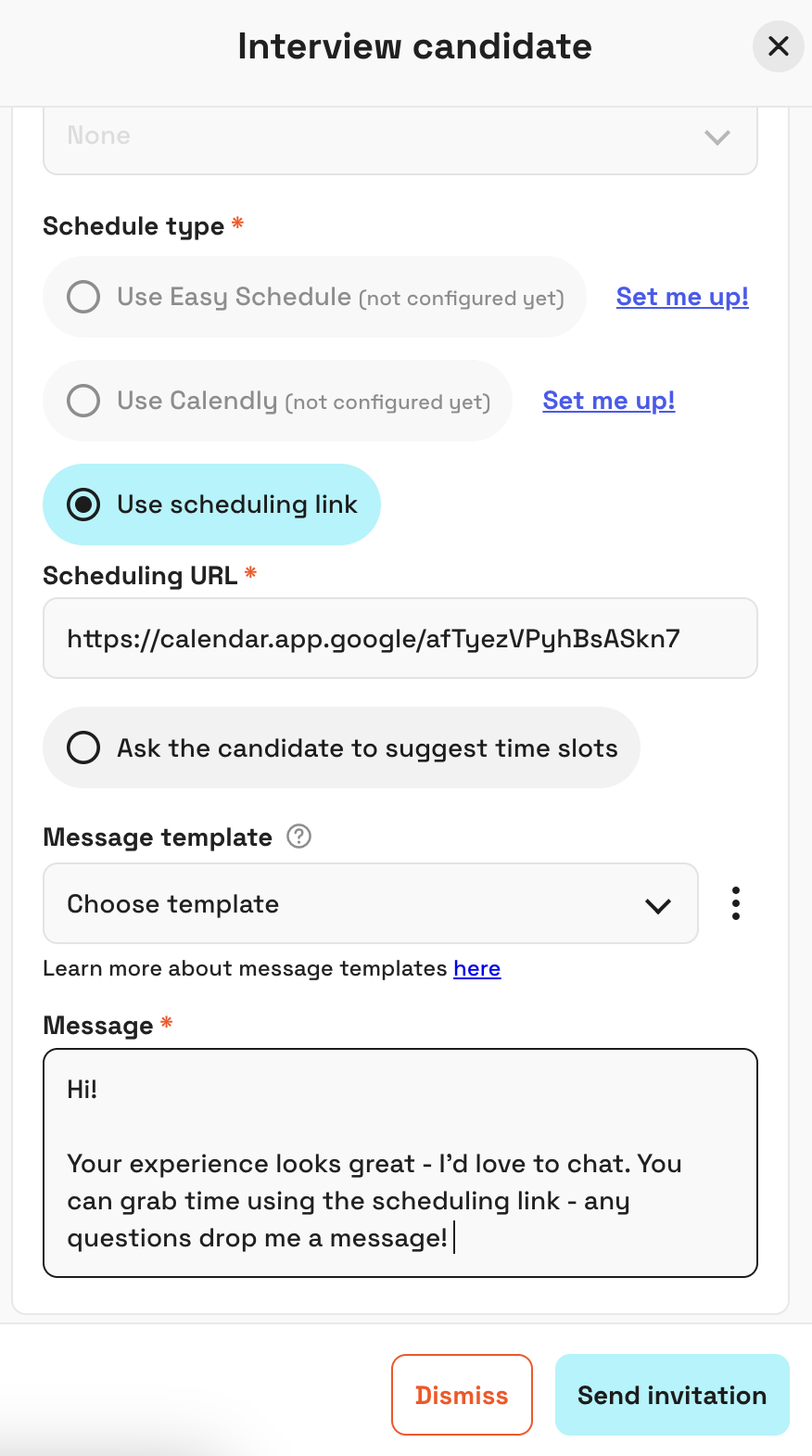
How to send an interview request with a scheduling link
Find the candidate you want to interview
Click
InterviewSelect
Use scheduling typeas the Schedule TypeAdd your scheduling URL (e.g. Calendly, Google Calendar)
Write your message and click Send Invitation
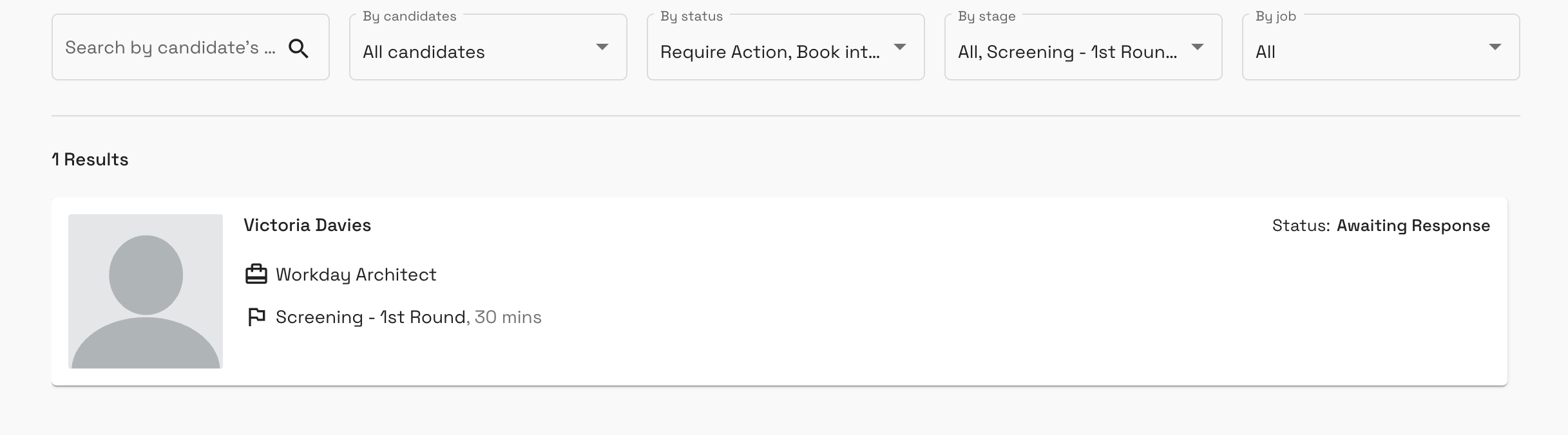
Once sent, the interview status will show as "Awaiting Response" until the candidate takes action.
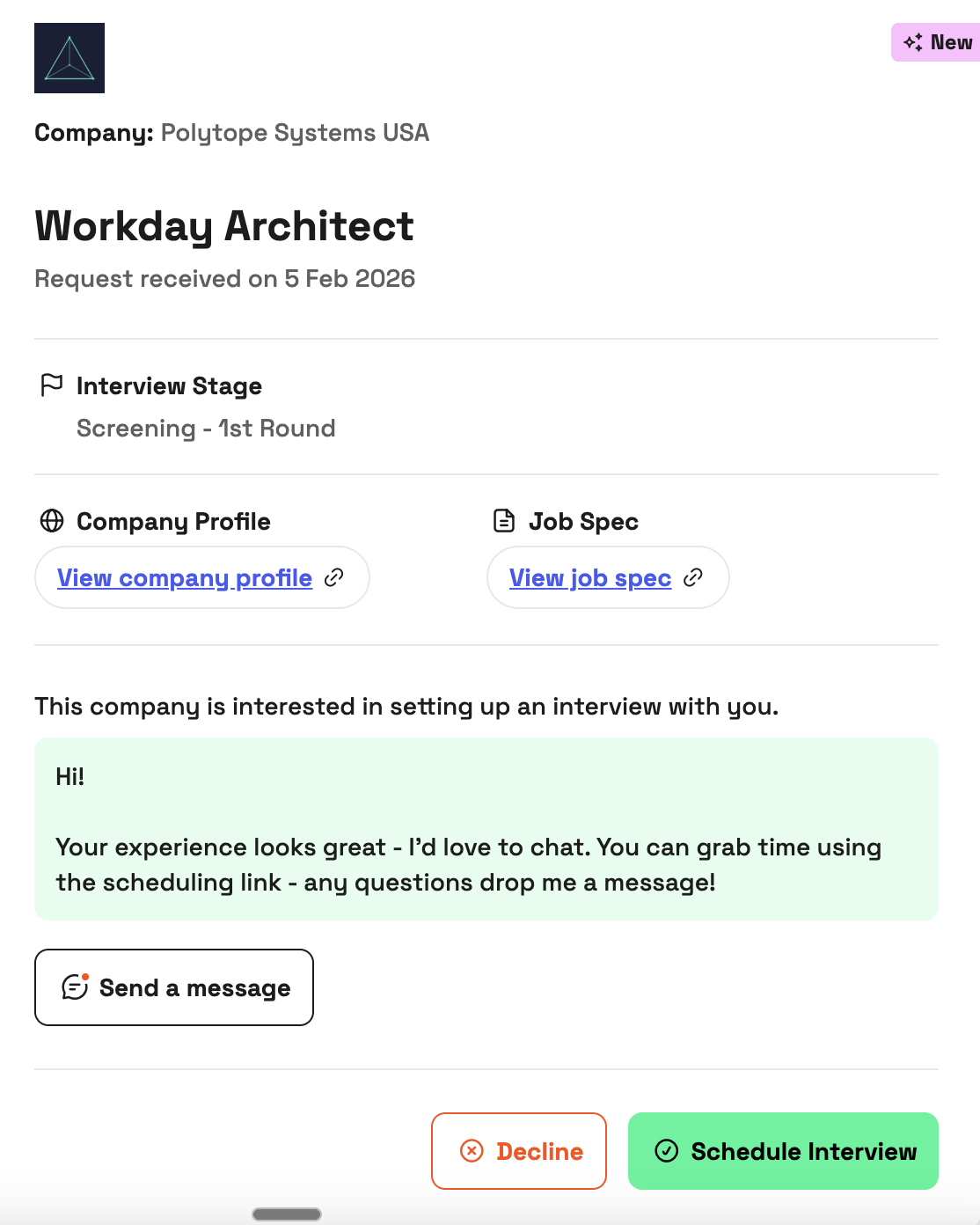
What candidates see
Candidates receive an interview request with a Schedule Interview button.
When they click the Schedule Interview button
They're directed to your scheduling link to book a time
You receive a notification through your scheduling tool (per your usual settings)
They're asked to confirm they've successfully booked the interview in hackajob
If the candidate confirms in hackajob:
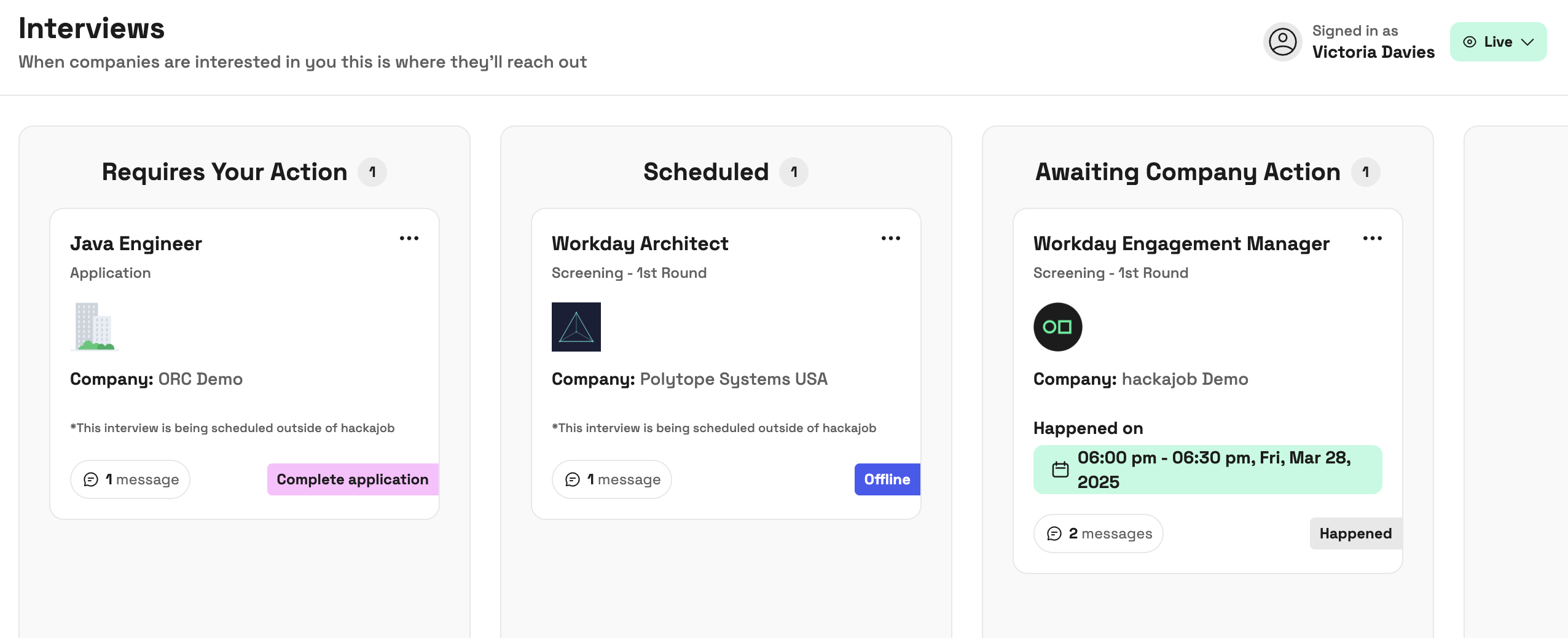
The interview appears as "Scheduled" in their Interview panel
You'll see it's been scheduled offline in the chat
The interview remains as "Requires Action" until you progress them (reject, hire, or send next interview request)
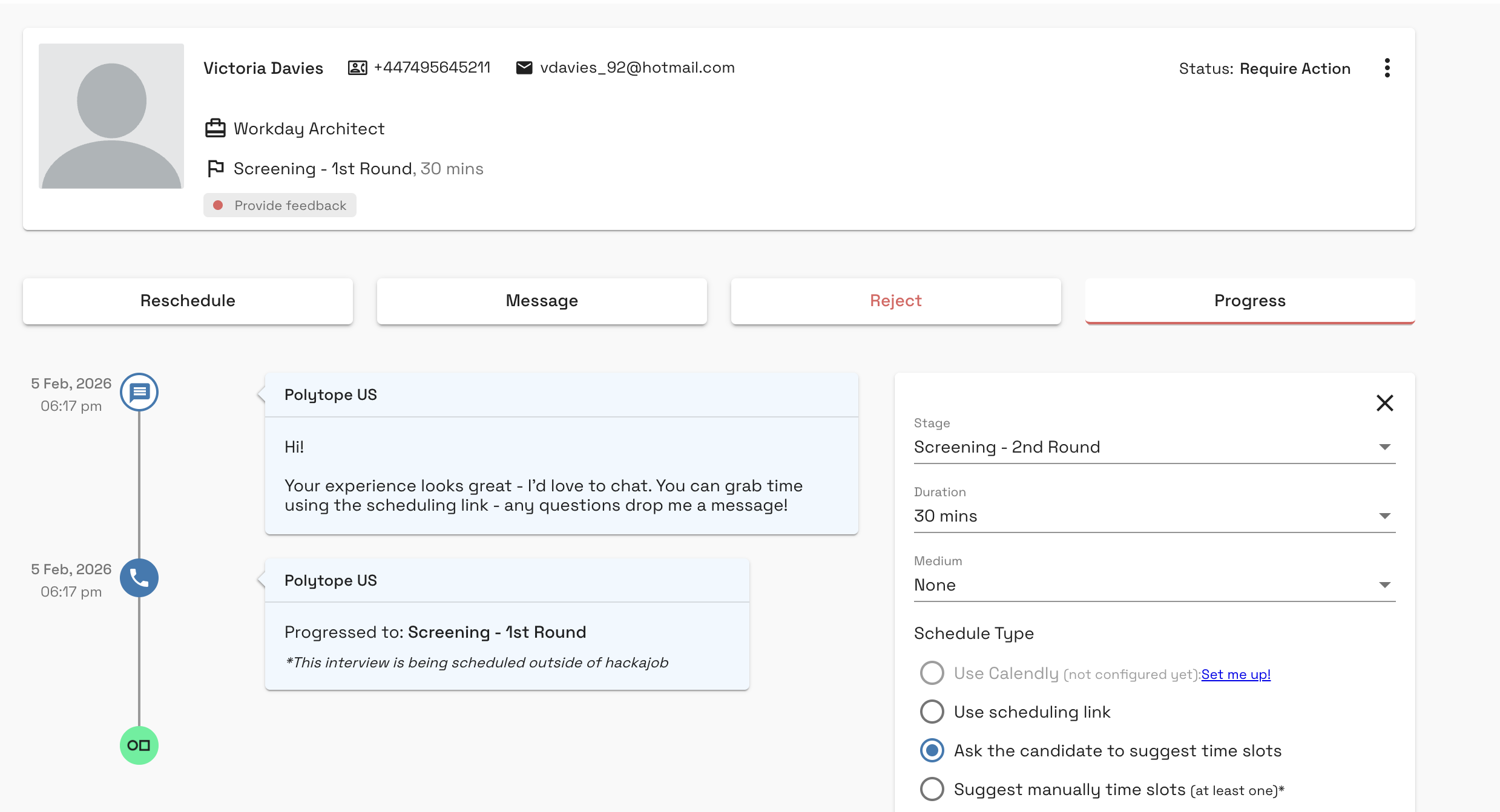
When to manually update hackajob
If your scheduling tool notifies you that a candidate booked, but they haven't confirmed in hackajob:
Go to Interviews and find the candidate
In the Progress menu, select Schedule offline
Click Schedule
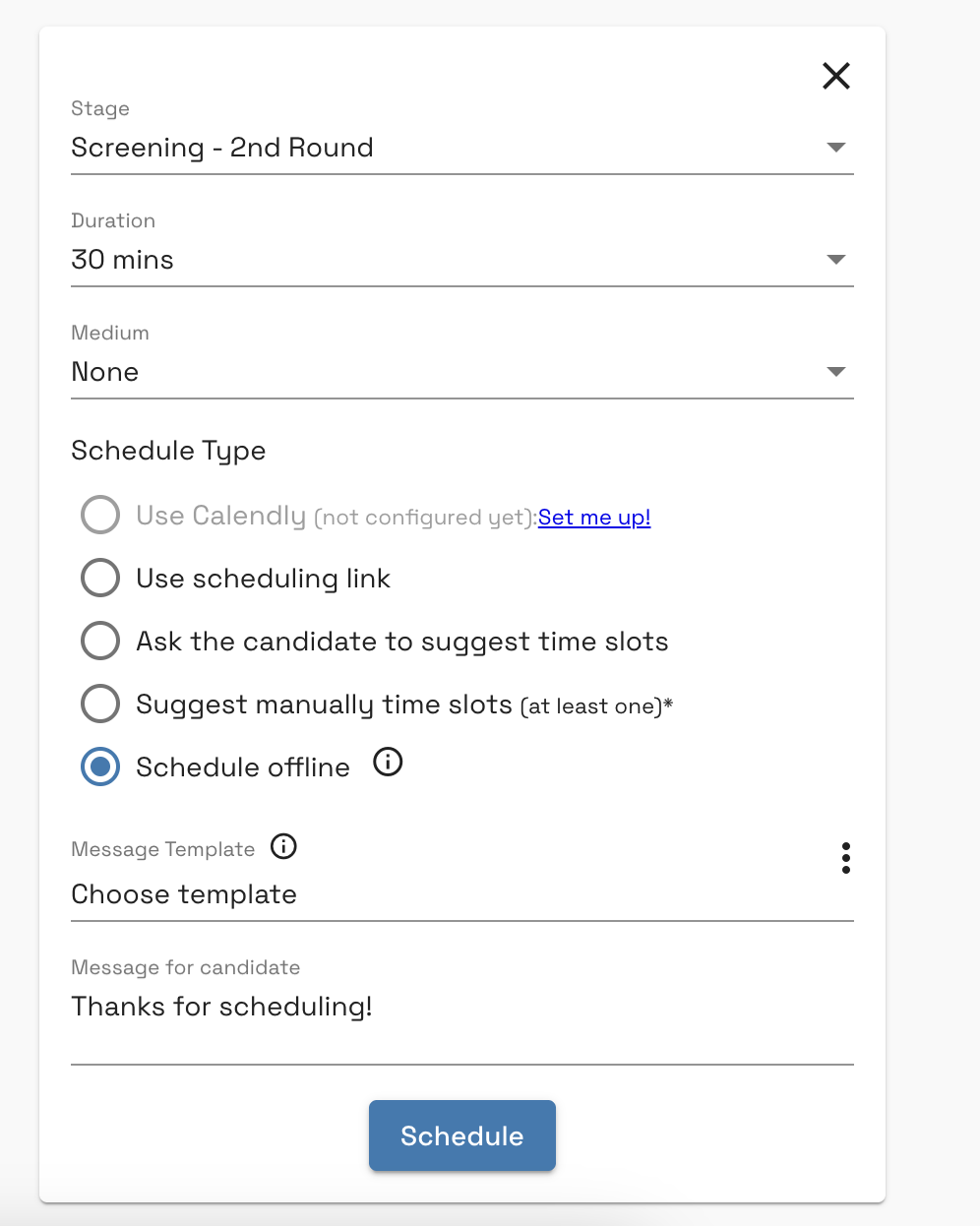
Both you and the candidate will then see the interview as scheduled offline, with a note: "This interview is being scheduled outside of hackajob"
What happens next
Once an interview is scheduled offline, all further updates should be managed through your ATS. hackajob will reflect the offline scheduling status, keeping candidates informed while you manage the process in your primary system.