Saved profiles
Last updated: December 13, 2024
Saved profiles
Empower your hiring your hiring manager to review profiles first, share candidate notes with your team, and get a second opinion before inviting candidates to interview.
Save profiles: Overview
✔ Save profiles for any live job
✔ Make notes and follow-up notes
✔ View saved lists and profile notes for jobs shared with team members
✔ Interview or remove saved candidates
How to save profiles
Candidates can be saved for any job live in your Find Talent dashboard. Click on a job to access your recent matches.
You can save a profile directly from your match list or once you’ve opened a profile, by clicking on the “Save” icon in the right-hand corner.

When saving a profile, you can add notes. These notes will be visible when you view the profiles later.
Once a candidate is saved, the 'Saved' icon will be highlighted in the match list, and their profile will appear in your saved list.
Viewing saved profiles
Saved profiles will show up in a separate tab in your match list for that job. Their profile will stay in the match list, with the saved icon highlighted to indicate it has been saved.

Click on the saved list tab to find your saved candidates for that job.

Profiles will be listed in the order they were saved, with the most recent at the top and timestamps showing when each was saved.
Click on a profile to see more details. You can return to view all of your matches for the job by clicking “All”.

Profile evidence ✨
The live version of candidate profiles appears in your saved list. If you update your search prompt, the profile details will adjust to match the new requirements. This includes:
AI Summary
Pink tags
Profile evidence
Profile notes
Profile notes can only be viewed from the saved list. The most recent note will appear on profiles in the list view, along with the total number of notes.

Shared jobs
If the job is shared with other team members you can see each other’s notes.
To share a job with other team members speak to your Customer Success Manager.
Add new notes
To add a new note, click on the selected profile. A notes section will be visible. Type your note in the textbox and click “Add.”
Edit or remove notes
Click on the icons to edit or remove notes. Only the owner of the note can edit or delete the note they created.

Actioning saved profiles
Invite candidates to interview or remove them from your saved list.
Invite to interview
Click 'Interview' at the bottom right of the profile and follow the same steps as you would in the match list.
Remove from the list
Click the ‘save’ icon to remove the profile from the list. If they still match the search criteria, the profile will remain in your match list, but the icon will no longer be highlighted.
If you choose to remove a candidate from the saved list, you will also lose any notes you made against them, even if you save them again.

Dismiss candidate
You can dismiss a profile from the saved list using the same steps as in the match list. However, they will no longer appear in the main match list.
Bulk actions on saved profiles
Request interviews, download profiles, and reject, or remove multiple candidates from your saved list.
Select the candidates you want to action using the checkboxes on the left-hand side, or "Select all" at the top of the list.
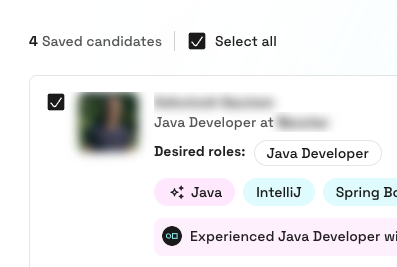
Choose your preferred action from the pop-up.

Bulk interview
The selected profiles will appear in the interview panel on the right-hand side. All recipients will receive the same message and interview format.
💡 We recommend using a message template to ensure personalised messages that include the candidates' first names.
Bulk download
You can download selected candidates' hackajob profiles as a PDF, saved in a zip file.
Once you click 'Download,' the profiles will be prepared, and a pop-up will appear to allow you to save the zip file.

Bulk dismiss
Candidates removed from your saved list will also be removed from your main match list. You must select the same dismissal reason for all candidates.
If you want to prevent them from matching with other jobs, select 'No' in the panel on the right-hand side.
Bulk remove
If you remove multiple profiles from your saved list, any notes associated with those profiles will be deleted.
Off-the-market candidates
When a profile’s status changes to 'Off the Market,' they will no longer appear as a match for live jobs.
If their status changes after you’ve saved their profile, it will remain visible in the saved list but appear greyed out. You won’t be able to request an interview, but you can dismiss or remove them from the list.