Getting started: what you need to know
Last updated: June 13, 2025
Meet hackajob intelligence (hi 👋)—Your assistant to source and hire qualified tech talent, faster with ultimate flexibility.
Instantly connect with hundreds of thousands of high-intent tech job seekers across 200+ job categories.
Getting started: What you need to know
Here are the five key things you need to know to find the right talent, quicker and easier.
1) Create a job with a search prompt ✏
Start by clicking “Create Job” in your Source dashboard.
Every new job begins with a search prompt. You can create one in a few ways:
Type your requirements using plain English
Speak your requirements aloud
Paste a job description
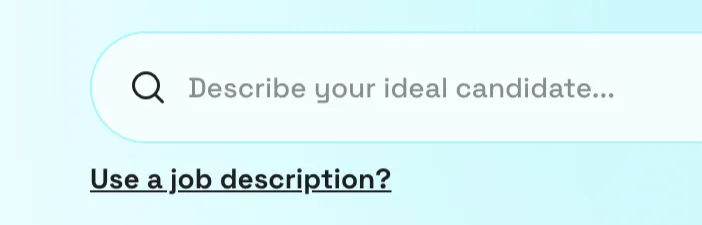
No need for keyword-heavy Boolean logic or listing every skill—your prompt should read just like you’re explaining the role to a colleague.
At a minimum, we recommend including:
✔ Job title ✔ Location ✔ Technical skills ✔ Min - Max Salary
E.g. Lead Software Engineer in New York (hybrid 2 days per week) with experience working on distributed systems with Java or Kotlin, paying £70-100K p/a
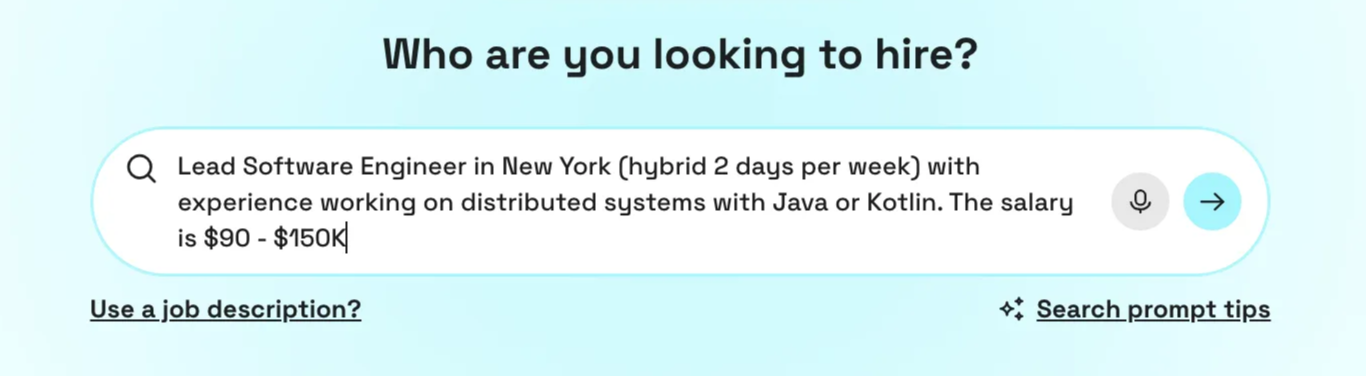
The more context you provide, the better your matches. Think beyond the basics, like soft skills or competencies, industry, specific projects, tenure, past companies or any other niche requirements.
E.g.
“must have worked in a product-led company”
“cannot have worked for a consultancy.”
“has managed a team of 5+ direct reports”
👉 See more real examples
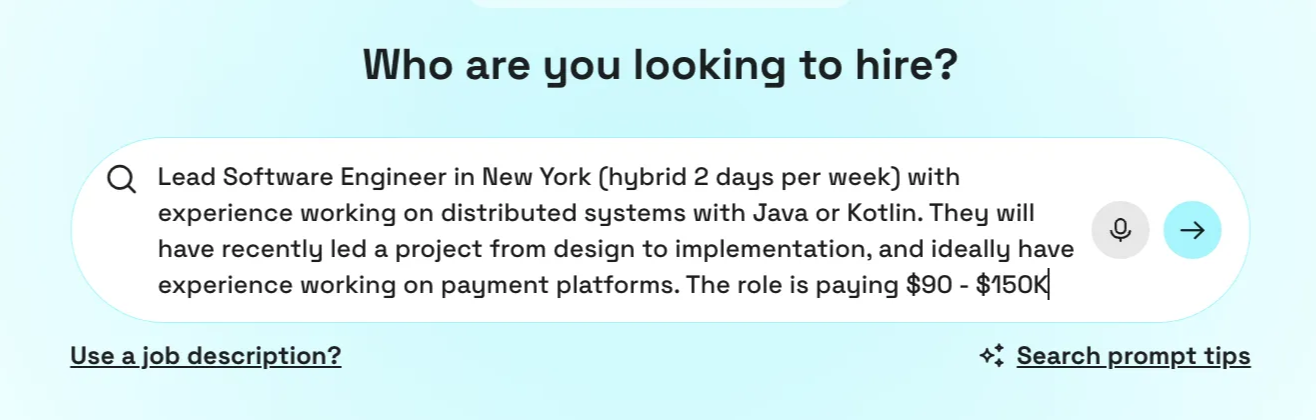
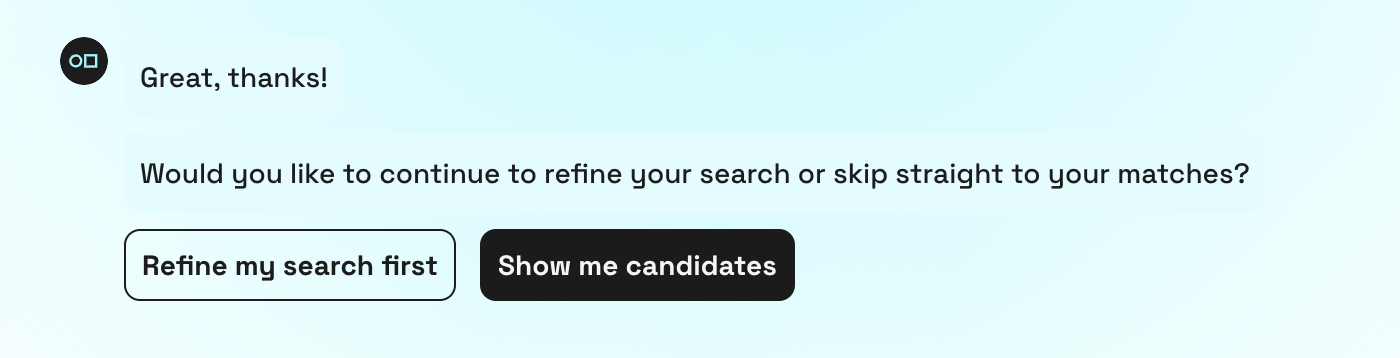
Once you're happy with your prompt, click “Show me candidates” to view your matches. hi 👋 will find all available candidates whose experience matches your needs.
2) hi 👋 captures your key requirements and explains them back to you
hi 👋 matches you with candidates based on context and experience related to what you asked for in your prompt, not just keywords or phrases.
Check the skills and background section of your filters on the left hand side.
All of the requirements from your search prompt are captured and listed as Must have and Nice to have.
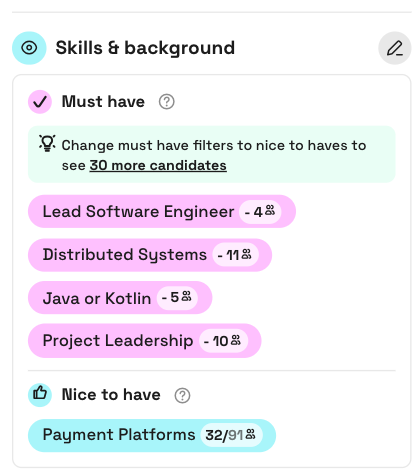
Candidates must meet all Must haves to appear in the match list. The more nice to haves they meet, the higher up they’ll be.
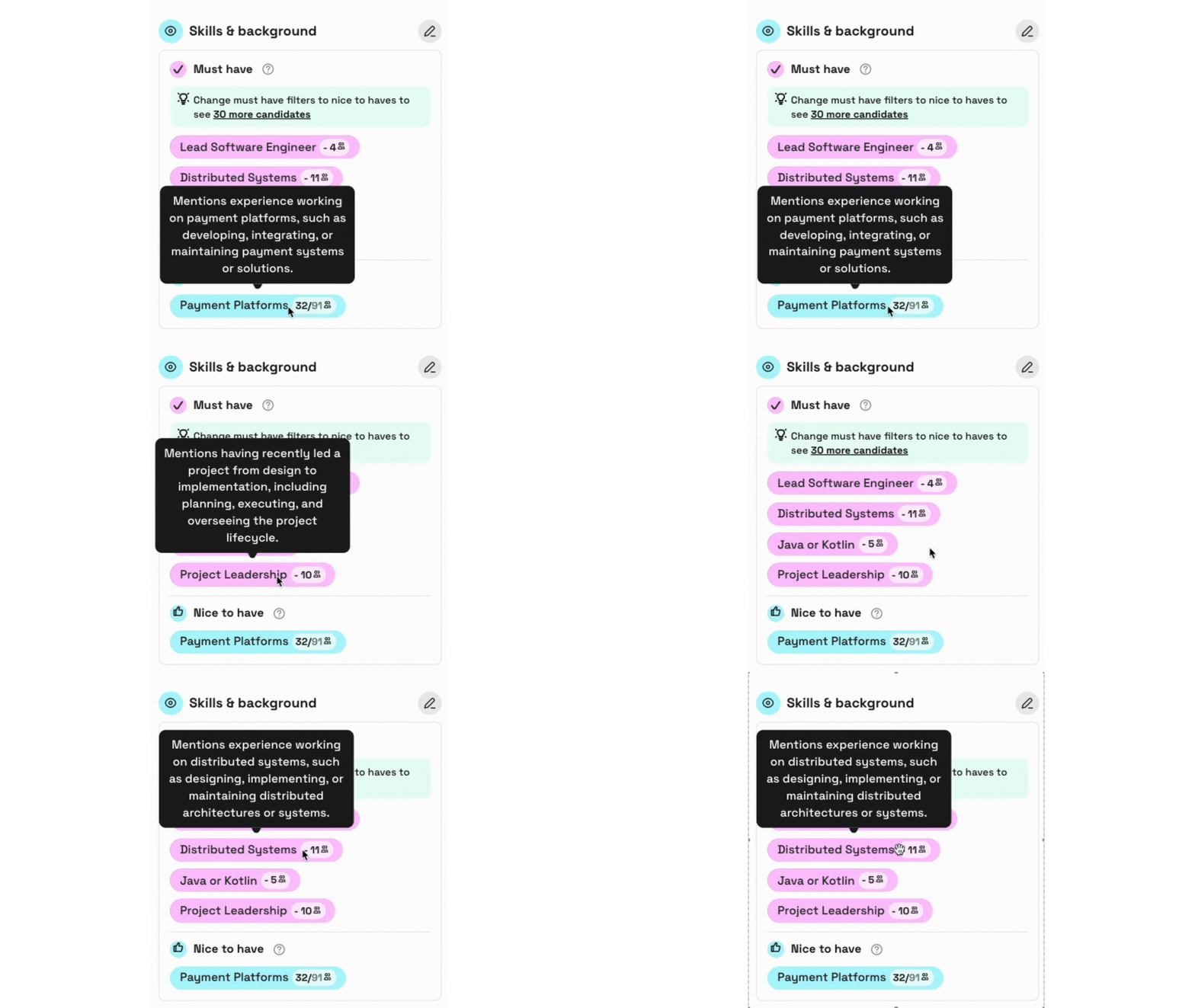
hi 👋 will explain back to you what its looking out for on candidates profiles.
Hover over requirements to see if what you’re searching for is on the right track 👍
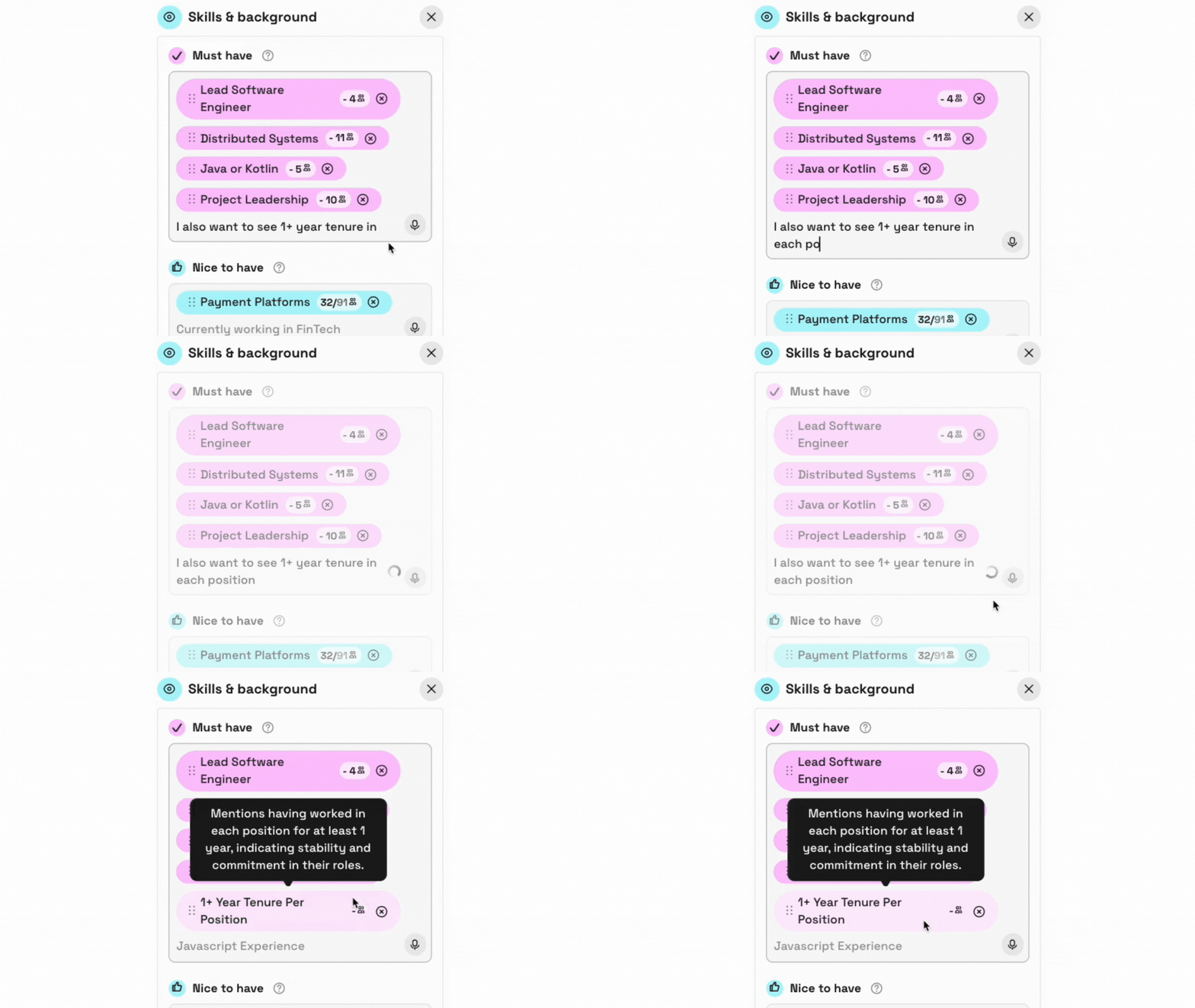
Skills and background filters are free-text, so if you want to change or add a requirement you can type or say anything you like into the text box.
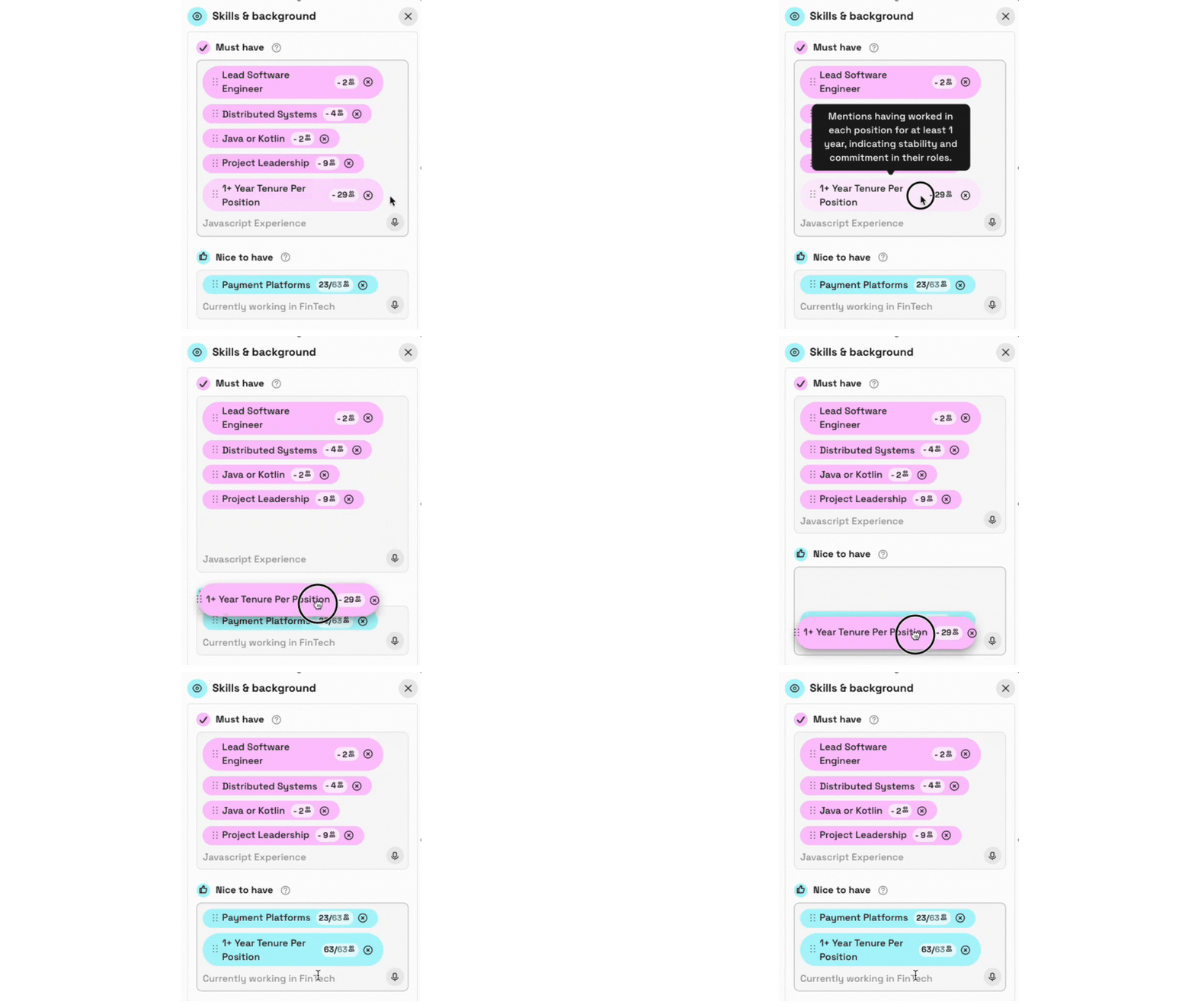
Or, you can drag something from nice to have or visa versa to see more or fewer matches.
Other filters
If you included essentials like location, salary, or working model in your prompt, these filters will be auto-filled for you. Take a moment to review them. You can tweak or remove anything that feels too limiting.
Use the eye icon to switch filters on or off and adjust what’s included in your match list, if you need to.
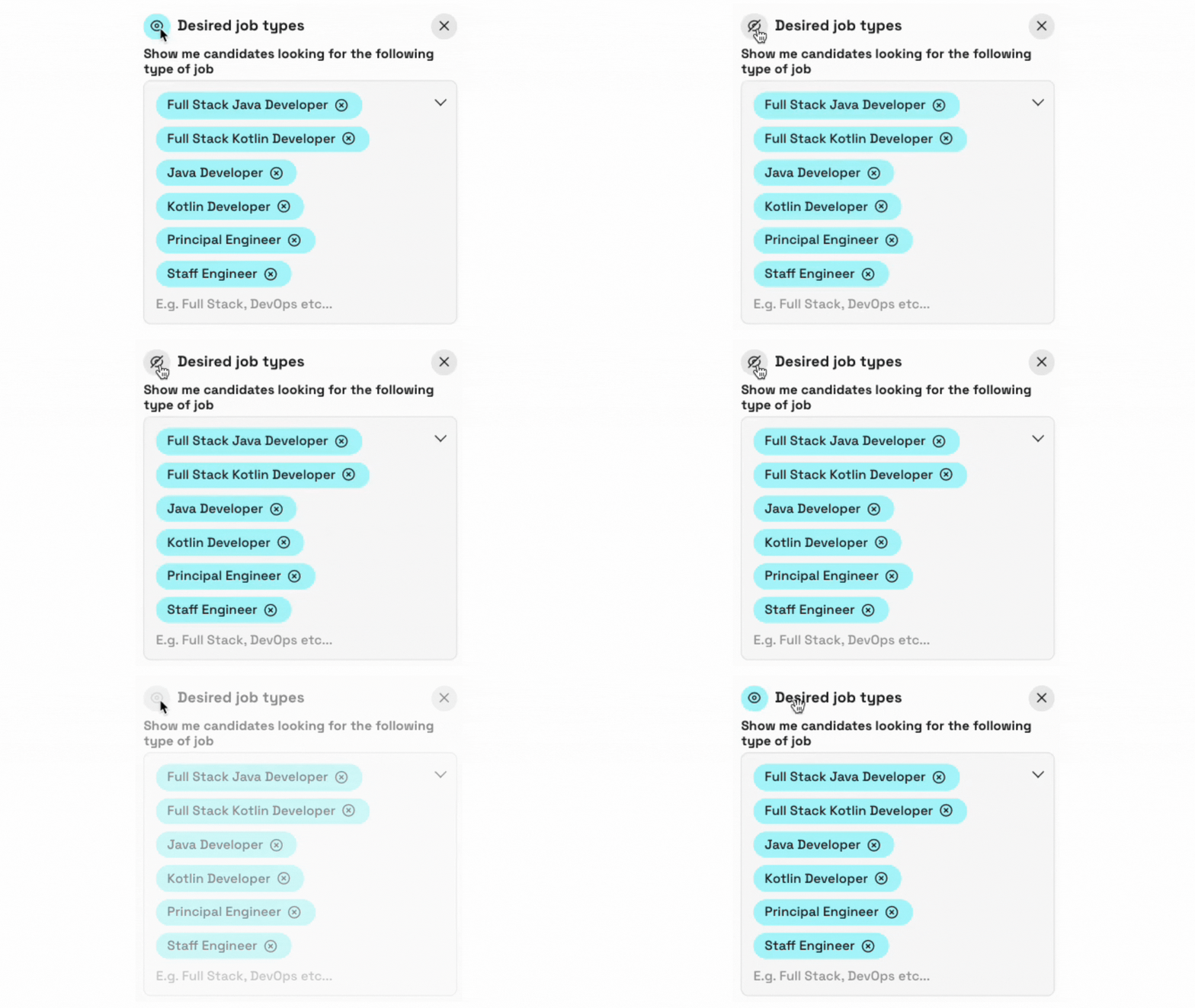
There are several filters available. Some, like visa and security clearance reflect non-negotiables from your side and typically apply no matter what.
But if you do need to switch filters on or off (using the eye icon), these are the ones we recommend adjusting:
Desired job titles – What candidates say they’re looking for
💡switch off for niche job titles
Years of experience – Specifically in their desired role
💡different from total career experience. If you want to specify total years experience, update your must have or nice to have filters
Salary: Keeping a broad enough range (e.g. £30,000–£100,000) so you don’t unintentionally exclude strong candidates who may sit just outside a tighter band.
3) hi 👋 explains why candidates match, too
Learn why and how candidates match your requirements without having to scan every profile manually.
You’ll see this evidence in three key ways:
1. AI Summary: Each candidate has a short overview explaining why they’re a match - visible in the match list and on their profile.
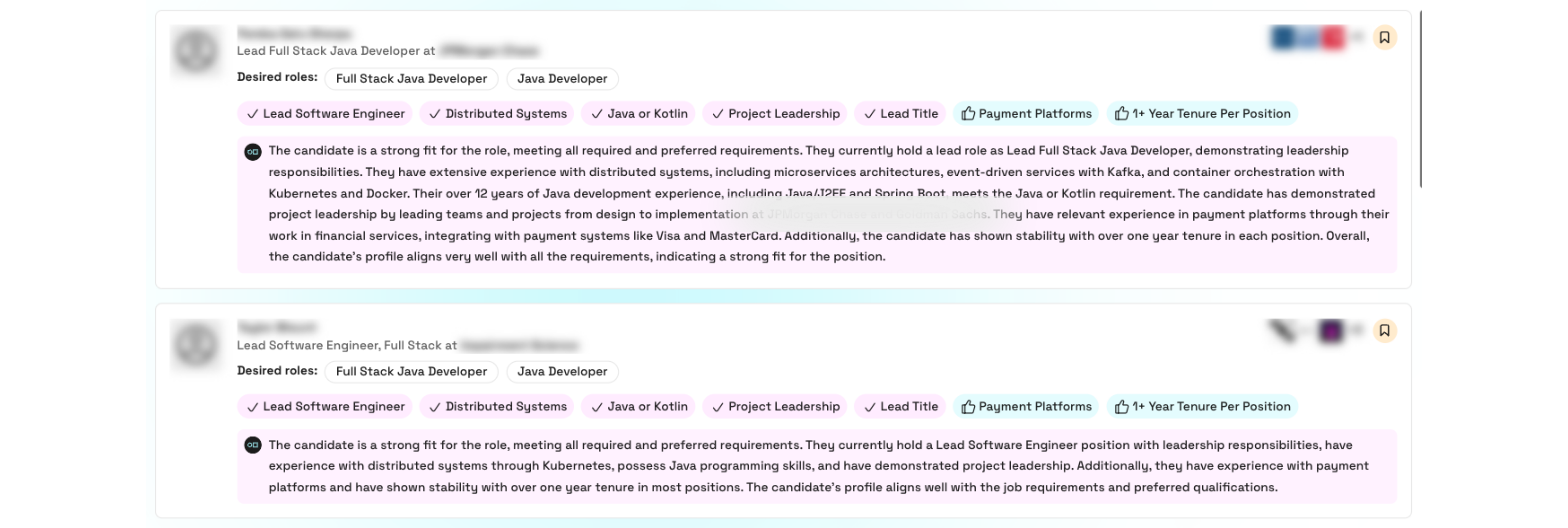
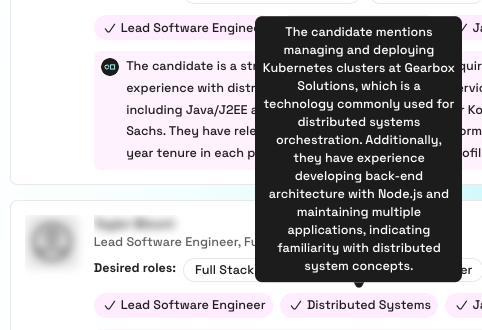
2. Must-haves and Nice-to-haves: Your requirements are displayed in pink (must-have) and blue (nice-to-have) across profiles.
Hover over these to see exactly how the candidate demonstrates that experience, with real examples.
💡Candidates must meet all must-haves to appear in your list.
💡 Missing nice-to-haves are clearly shown, so you can see how close they come.
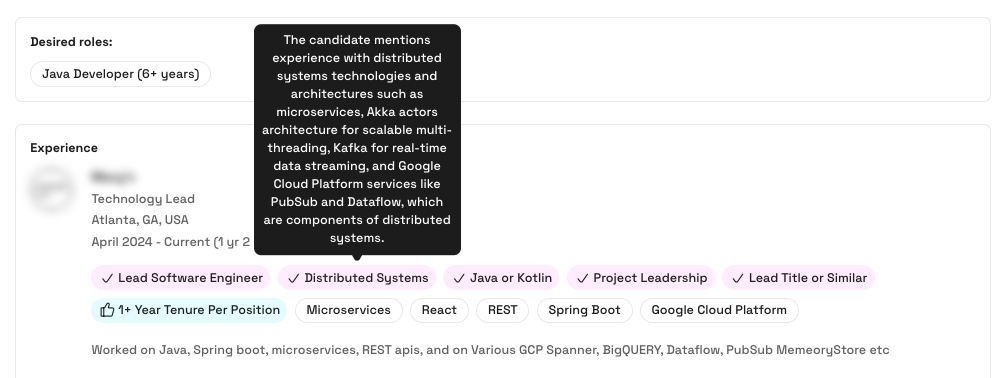
In-profile evidence: You’ll also see your requirements highlighted throughout the candidate’s work history—next to their tech stack and responsibilities for each role.
4) Use skills insights to guide your search ⚖
Skills Insights give you a real-time view of how many candidates match different requirements, before you adjust your search.
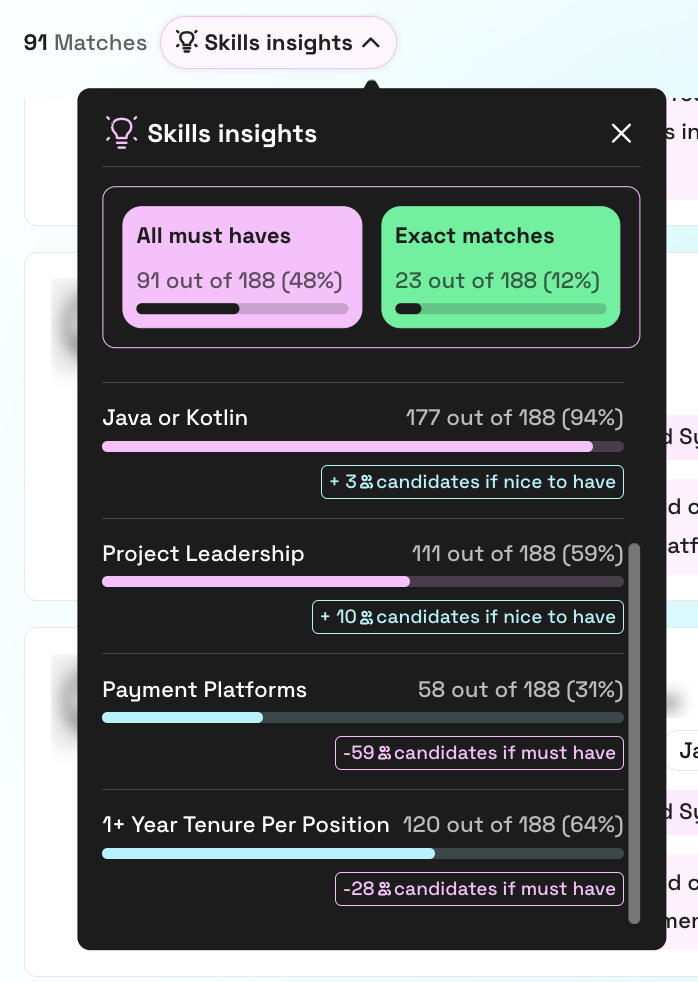
At the top of the Skills Insights panel, you’ll see:
All Must-Haves: The number of candidates who meet all your must-have criteria.
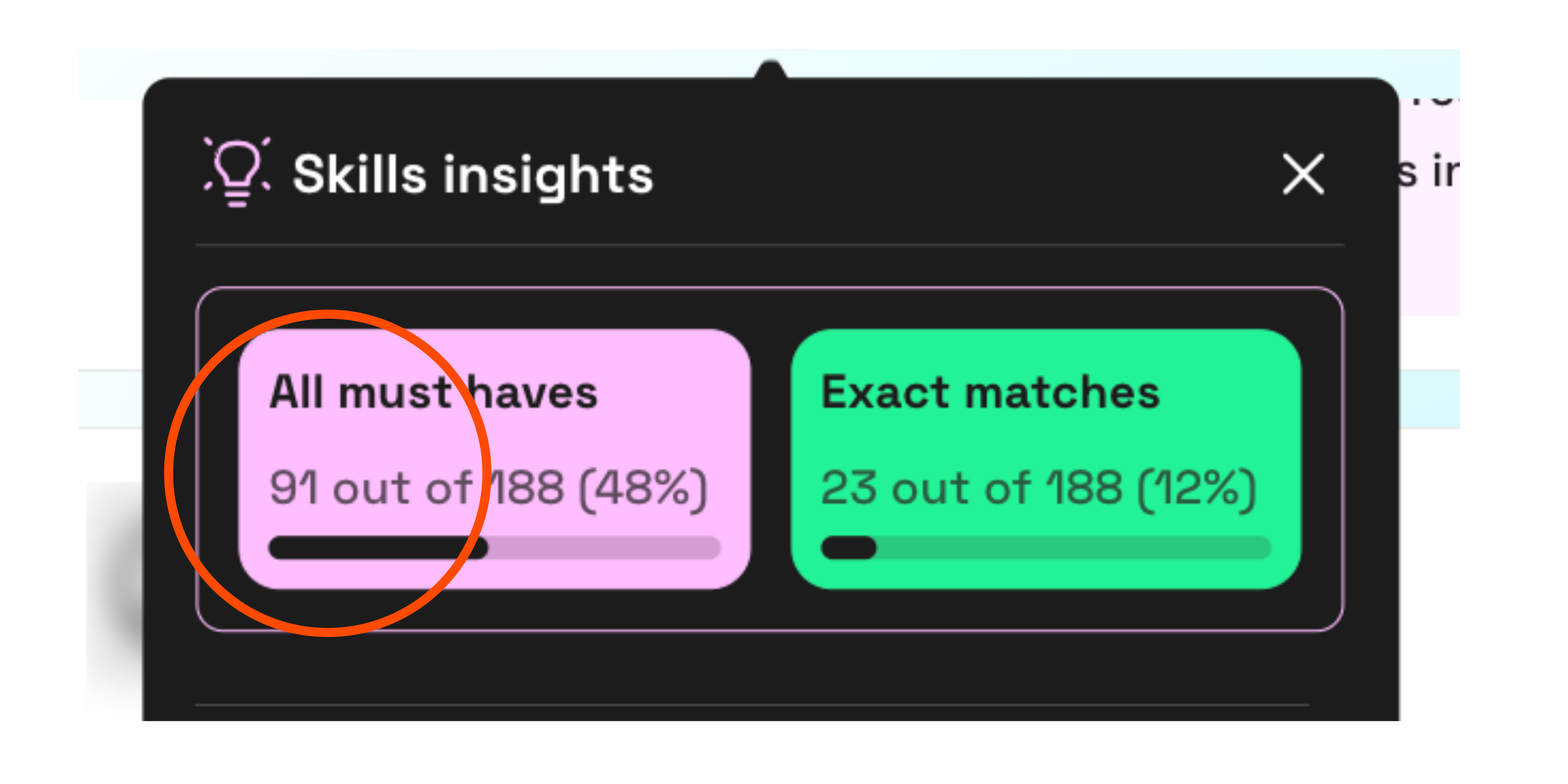
Exact Matches – How many meet both your must-haves and nice-to-haves
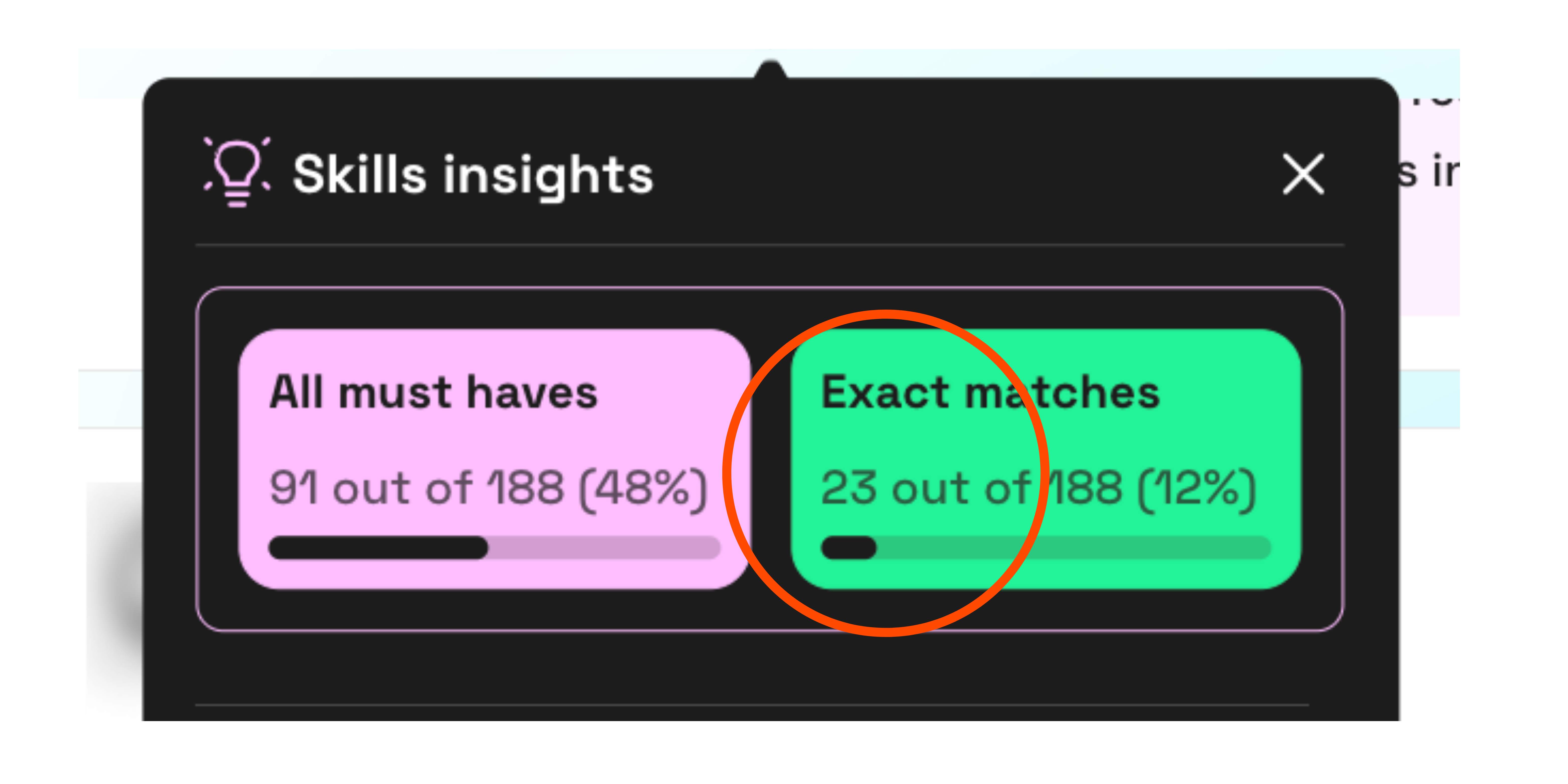
Potential Matches – The total number of candidates available if all requirements were treated as nice-to-haves
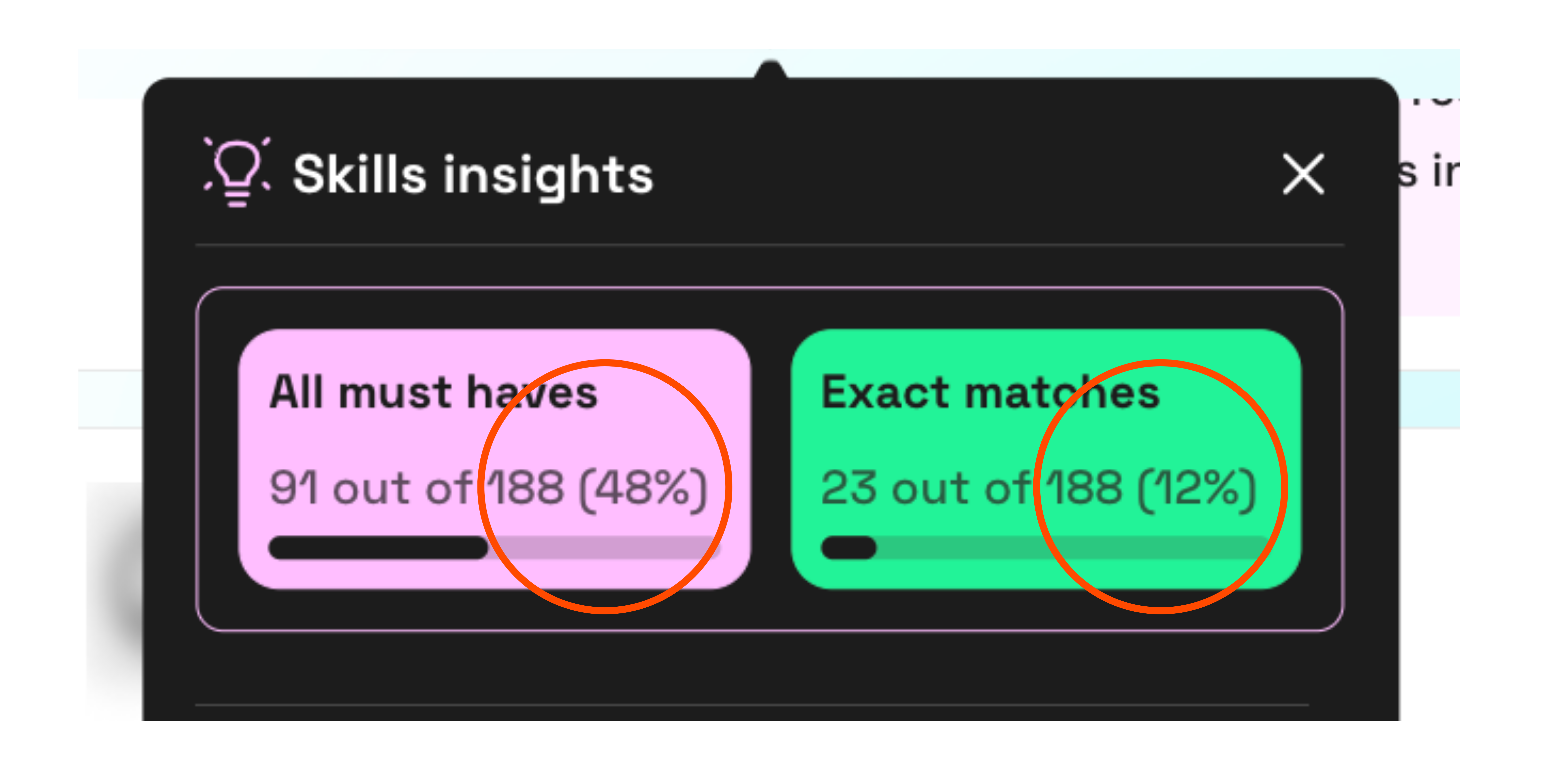
Each unique requirement shows how many candidates from your potential matches meet it, and how your results would change if you moved it between must-have and nice-to-have.
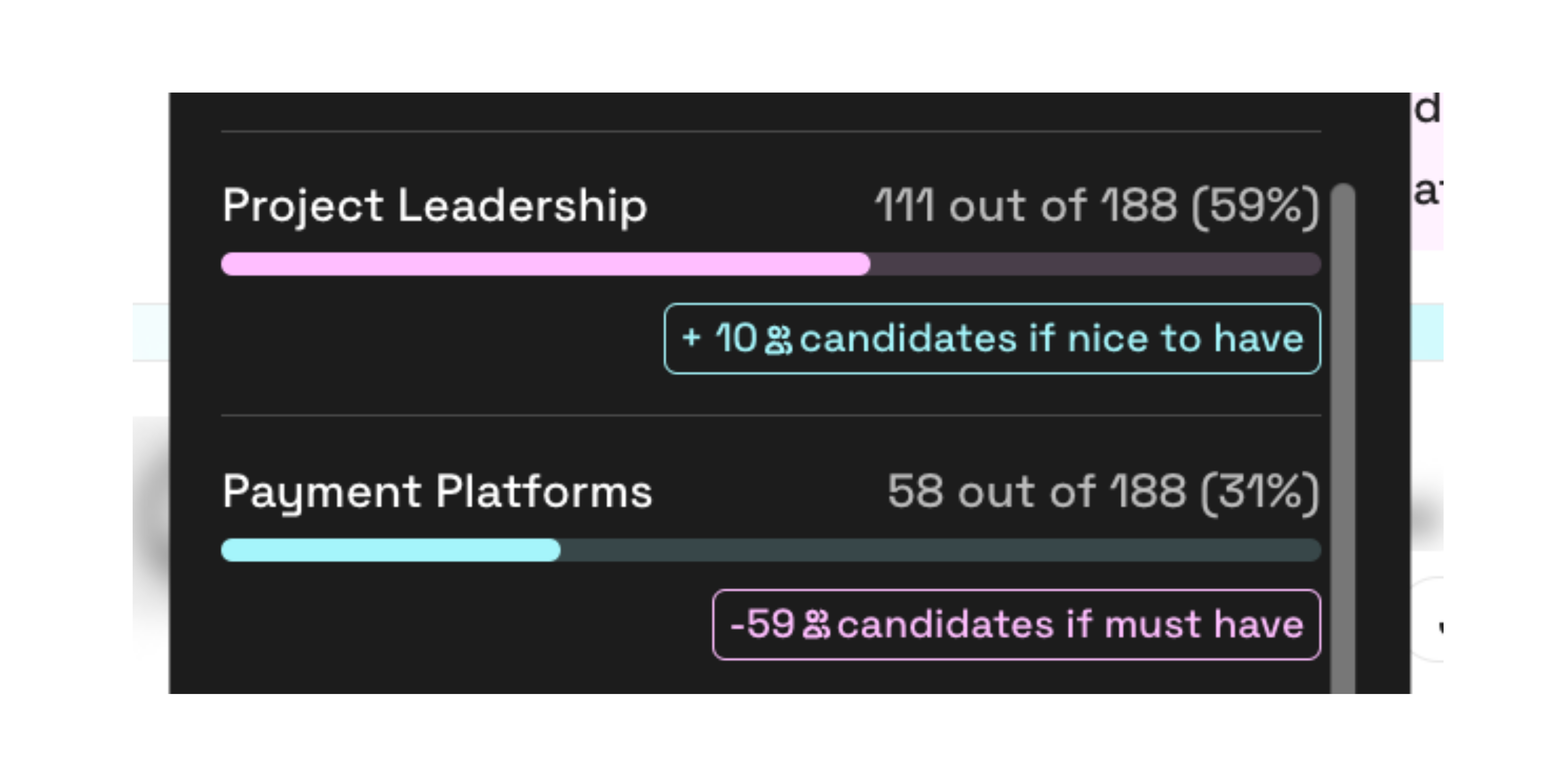
💡 Other filters like salary, location, visa, and more—are also factored into these insights, so you’re seeing a true picture of the market based on everything you’ve set.
These insights let you adjust your search based on real data, not guesswork. Helping you shape the brief, avoid over-filtering, and get a clear view of what’s realistic right now.
5) Request interviews in seconds ⏱
To invite a candidate to interview, click ‘Interview’ in the bottom right-hand corner of a candidate’s profile—If you’ve not added a job description yet, you’ll be asked to add one.
💡Alternatively, save their profile from the match list or profile view and request interviews in bulk.
A pop-out will appear. Check you’re happy with the information and message you’re sending to the candidate.
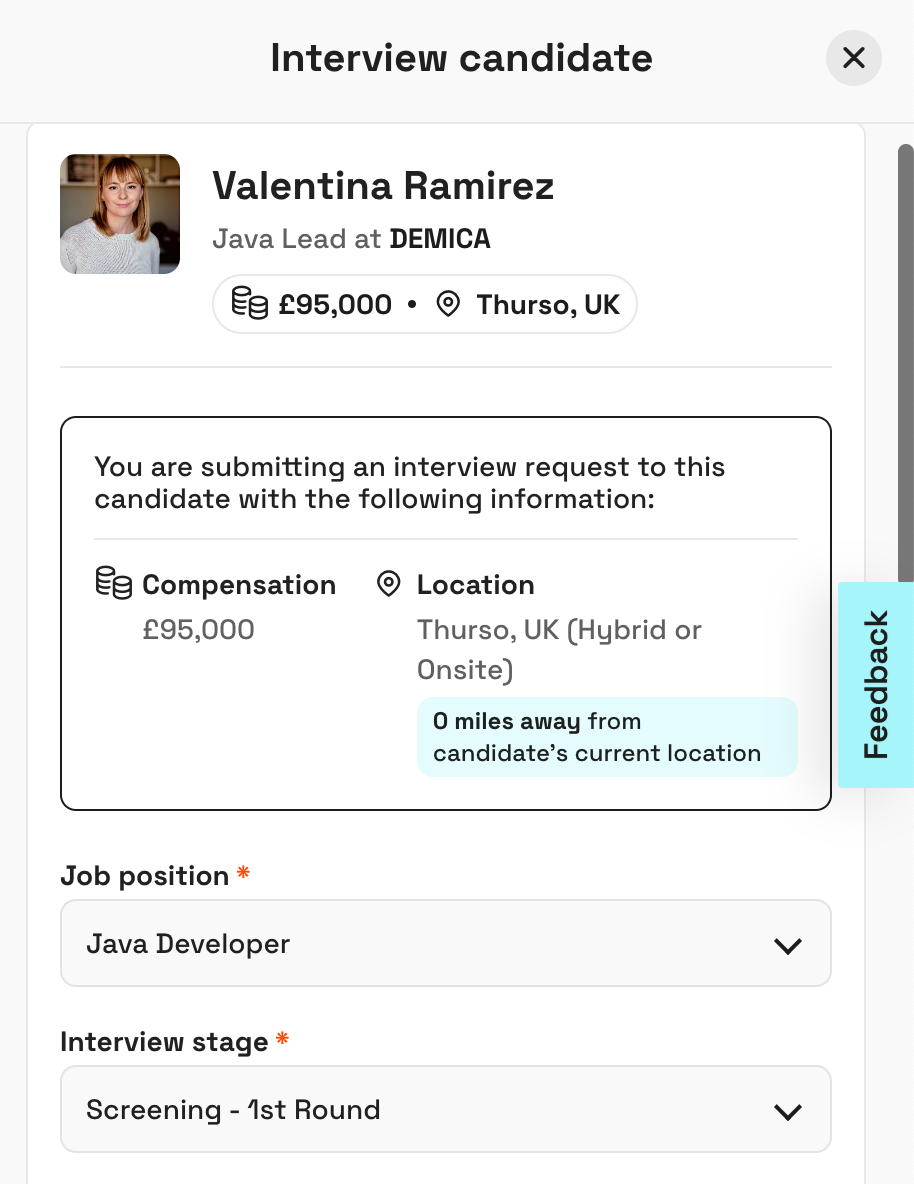
We recommend creating a message template for each live job to speed up requesting candidates.
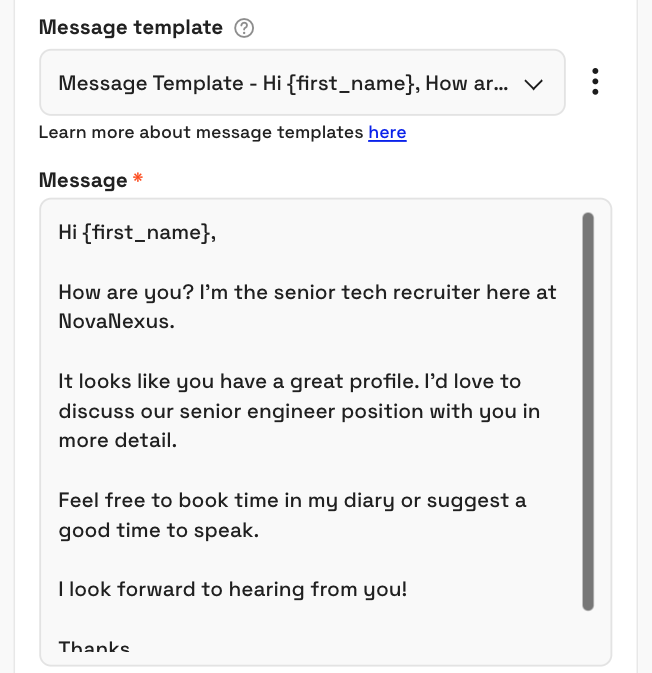
💡 If you haven’t integrated your calendar or preferred video conferencing platform yet, you can do it at this stage—it only takes a few minutes.
Now, wait for the candidate to accept or decline. 90% typically respond within 48 hours.
Once confirmed, you’ll both receive a calendar invite with the candidate’s profile and job details 🎉.